
ÂÂÂ
You can easily Install/Reinstall the operating system using the Virtualizor. However, note that this option will destroy all the data on your VPS.
ÂÂÂ
1. Log in to your Virtualizor Control Panel.
2. From the left side panel, click on List VPS.

ÂÂÂ
3. Hover your mouse on the appropriate VPS, and that line will be highlighted. Then click on the Manage icon in the highlighted line.

ÂÂÂ
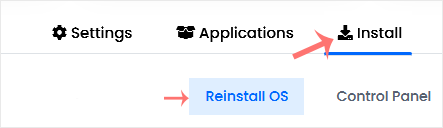
4. Click on the Install tab.
ÂÂÂ
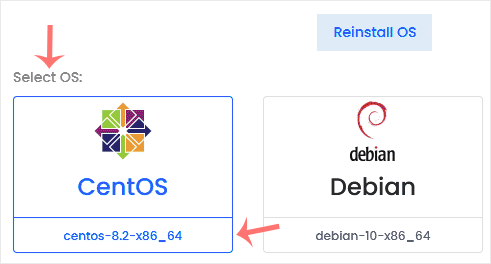
5. Under Reinstall OS, select the appropriate OS. If it has more than one version, select the appropriate version.
ÂÂÂ
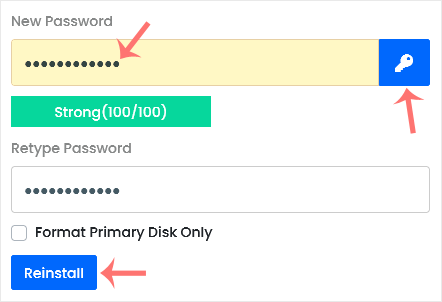
6. In the password field, enter the password or click on the key icon to generate a random one. Save it in a safe place, and then click on Reinstall.
ÂÂÂ
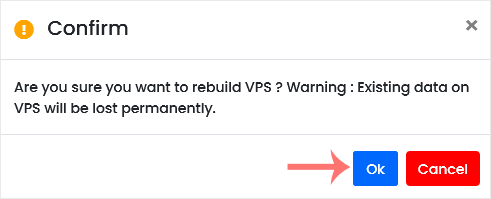
7. A confirmation box will prompt. Click OK to proceed.
ÂÂÂ
OS Reinstallation can take from 5 to 10 minutes.
ÂÂÂ